
By the end of this chapter, you will be able to:
Mastering these skills will help you confidently support and maintain computers in any workplace, making you a valuable asset in the IT field.
Compiled by: Caroline Akoth
Computer devices form the foundation of all ICT operations, enabling professionals to perform tasks ranging from data processing to network management. For ICT Technicians in Kenya, selecting appropriate hardware is critical to ensuring optimal performance, reliability, and cost-effectiveness in diverse environments such as county government offices, universities, and banks. This chapter focuses on understanding the fundamental computer devices, their components, and how to select them judiciously to meet professional demands.
Selecting computer hardware devices requires a clear understanding of the components that make up a computer system, their interrelationships, and the specific needs of the user or organization. In Kenya's dynamic ICT sector, technicians must balance performance requirements with budget constraints, ensuring that devices can handle current tasks and potential future upgrades.
Before buying or recommending any device, the technician compares what the user needs with what the device offers. A school computer laboratory, a hotel front desk and a hospital records office each need different hardware, so the same checks are applied to each request.
Performance Requirements: The anticipated workload determines the choice of hardware. For example, a graphic designer at a hotel requires a high-performance GPU, whereas a data entry clerk at a retail business prioritizes a responsive keyboard and monitor.
Compatibility: Devices must be compatible with existing systems and software. An ICT Technician at a cooperative must ensure new hardware integrates with legacy systems without disrupting operations.
Budget Constraints: Cost is a critical factor, especially for public institutions like county governments where procurement budgets are limited.
Scalability and Upgradability: Selecting devices that allow future enhancements can extend the lifespan of computer systems, reducing long-term costs.
Reliability and Warranty: Devices with strong warranties and proven reliability reduce downtime, a priority for mission-critical environments such as hospitals.
Availability of Support and Spares: Hardware from brands with local dealers and available spare parts is repaired faster and cheaper than an imported model with no service agent in the country.
Power Requirements: In areas with unstable mains supply, low power consumption and the cost of a matching UPS both affect the choice.
Computer devices encompass all physical components essential for a computer system to function. These devices are broadly categorized into input devices, output devices, processing units, and storage units. For an ICT Technician, knowledge of these devices enables effective troubleshooting, maintenance, and enhancement of computer systems in various Kenyan institutions like hospitals, schools, and retail businesses.
Hardware means the physical parts of a computer: everything you can see, touch and replace. It is the opposite of software, which is the set of programs and instructions that run on that hardware. A keyboard, a hard disk and a motherboard are hardware. Windows, a browser and an antivirus are software. Hardware without software cannot do anything useful, and software without hardware has nothing to run on.
Example: in a school computer laboratory, replacing a faulty mouse or a failed hard disk is a hardware job, while reinstalling the operating system or updating the antivirus is a software job.
Computer hardware falls into two groups by location:
Identifying components and ports is the first practical skill of a technician. A technician at a county office who cannot tell a VGA socket from an HDMI socket will connect cables wrongly or order the wrong replacement. Ports are recognised by their shape, number of pins, label and colour.
Parts that can be identified from the outside of a desktop system:
Common ports and connectors:
| Port | Appearance | Use |
|---|---|---|
| USB Type-A | Flat rectangular socket | Keyboards, mice, flash disks, printers |
| USB Type-C | Small, oval and reversible | Newer devices, data transfer and charging |
| HDMI | Flat socket with one tapered side | Digital video and sound to a monitor, TV or projector |
| DisplayPort | Similar to HDMI with one corner cut | Digital video and sound to a monitor |
| VGA | Blue 15-pin D-shaped socket | Analogue video to older monitors and projectors |
| DVI | White socket with many pins | Digital video to monitors |
| RJ-45 (Ethernet) | Wider than a telephone socket, 8 contacts | Wired network connection |
| 3.5 mm audio jacks | Round, usually colour-coded: green for speakers, pink for microphone, blue for line-in | Sound input and output |
| PS/2 | Round 6-pin socket: purple for keyboard, green for mouse | Older keyboards and mice |
| Power inlet | Three-pin socket on the power supply | Mains power to the system unit |
Procedure for identifying the ports of a desktop computer:
The computer case, monitor, keyboard, and mouse are the primary physical interfaces between the user and the computer system. Their selection impacts user comfort, system protection, and overall productivity in professional settings.
The computer case houses all internal components and protects them from dust, damage, and electromagnetic interference. Cases come in various sizes and designs tailored to different requirements.
Form Factors: Common sizes include Full Tower, Mid Tower, Mini Tower, and Small Form Factor (SFF). For example, a county office with limited space might opt for an SFF case to conserve desk area.
Cooling Systems: Effective airflow is crucial to prevent overheating. Cases may include fans, vents, and sometimes liquid cooling systems. A busy university ICT lab running multiple systems benefits from cases with enhanced cooling features to maintain performance.
Expansion Slots: The number of available slots determines the ability to add components like extra graphics cards or additional storage. Retail businesses needing point-of-sale systems may require cases with sufficient expansion slots for peripherals.
Build Material: Steel and aluminium are common, with aluminium giving a lighter case that is easier to move.
Noise Levels: Cases with noise-dampening features are preferred in quiet environments like libraries or offices.
Dust Protection: Dust filters over the intake fans matter in dusty environments, since accumulated dust blocks airflow and causes overheating.
The monitor is the primary output device displaying visual information. Its selection affects clarity, colour accuracy, and user comfort.
Display Type: Most flat monitors are Liquid Crystal Display (LCD) panels, and most today use Light Emitting Diode (LED) backlighting. LED backlighting is more energy-efficient than older fluorescent backlighting and gives good brightness.
Resolution: Higher resolutions such as Full HD (1920 × 1080) or 4K (3840 × 2160) improve image detail. Graphic designers at hotels prefer 4K monitors for precision work.
Size: Common sizes range from 19 to 32 inches. A call centre in a bank might use 22-inch monitors balancing space and readability.
Refresh Rate: Measured in hertz, this is how many times per second the screen updates. Rates above 60 Hz give smoother motion, which matters for video and design work more than for office tasks.
Connectivity: Monitors with multiple input ports (HDMI, DisplayPort, VGA) ensure compatibility with various computers.
Touch Capability: A touchscreen monitor suits point-of-sale counters, information kiosks and hospital reception desks where a keyboard is impractical.
The keyboard is the primary input device for text and commands, influencing typing speed and accuracy.
Layout: Standard QWERTY layout is common, but ergonomic designs reduce strain for users in data-intensive roles, such as clerks in county government offices.
Switch Type: Mechanical keyboards offer tactile feedback that many programmers prefer, while membrane keyboards are quieter and more affordable.
Connectivity: Wired keyboards provide stable connections; wireless options offer flexibility but require battery management.
Durability: Spill-resistant and dust-proof keyboards enhance longevity in environments like retail shops.
Additional Features: Multimedia keys and programmable buttons improve efficiency in specialized tasks.
The mouse controls cursor movement and user interaction with the graphical interface.
Type: Optical and laser mice differ in sensor technology; laser mice can track on more surfaces and with finer precision, useful for design tasks in universities.
Ergonomics: Comfortable grip designs prevent repetitive strain injuries in professionals who use computers extensively.
Buttons: Additional programmable buttons increase functionality for power users.
Connectivity: Like keyboards, mice can be wired or wireless, with wireless mice offering mobility at the cost of battery dependence.
Durability: Robust construction is important for high-usage environments such as hospitals.
The internal components housed within the computer case work in concert to process data and execute applications. Understanding these parts enables ICT Technicians to build, upgrade, and repair systems tailored to organizational needs.
| Name | Specification | Use |
|---|---|---|
| Motherboard | ATX, Micro-ATX, Mini-ITX form factors; chipset types vary | Central circuit hub connecting all components |
| Central Processing Unit (CPU) | Multi-core processors (Intel Core i5/i7, AMD Ryzen) | Executes instructions and processes data |
| Hard Disk Drive (HDD) | Capacities from 500GB to several TB; 5400-7200 RPM | Long-term magnetic data storage |
| Solid State Drive (SSD) | Capacities from 128GB to 2TB; SATA or NVMe interface | Fast, reliable data storage without moving parts |
| Video Card (GPU) | Integrated or dedicated with varying VRAM sizes | Renders images and video output |
| Random Access Memory (RAM) | DDR3, DDR4 types; sizes from 4GB to 32GB+ | Temporary data storage for active processes |
| Power Supply Unit (PSU) | Wattage ratings from 300W to 850W; efficiency ratings (80 Plus) | Supplies power to all components |
| Cooling System | Fans, heat sinks, liquid cooling options | Maintains optimal operating temperatures |
| CMOS battery | Coin cell, typically CR2032 | Keeps the BIOS settings and system clock when power is off |
| Optical drive | DVD or Blu-ray, SATA interface | Reading and writing discs, now often omitted |
The motherboard is the backbone of the computer, providing the platform for communication between the CPU, memory, storage, and peripherals. It determines the types of processors and memory supported, expansion capabilities, and connectivity options.
Chipset: Controls data flow between components. Higher-end chipsets in servers or university labs support advanced features like multiple GPUs.
Form Factor: Dictates size and compatibility with cases and power supplies. Micro-ATX boards are common in office desktops for their compactness.
Slots and Ports: Includes PCIe slots for expansion cards, USB ports for peripherals, and SATA connectors for storage devices.
Integrated Components: May include onboard audio, network interfaces, and video output, reducing the need for additional cards in basic setups.
The CPU performs the core processing tasks, executing instructions from software applications.
Clock Speed: Measured in GHz, higher speeds improve task execution rates. Financial analysts at banks require fast CPUs for data analysis.
Cores and Threads: Multi-core processors handle multiple tasks simultaneously, enhancing multitasking capabilities.
Cache Memory: Small, fast memory inside the CPU speeds up access to frequently used data.
Thermal Design Power (TDP): Indicates heat generation; lower TDP CPUs are preferred for energy efficiency in government offices.
Socket Type: Must match the motherboard's CPU socket for compatibility.
Storage devices retain data persistently, with HDDs and SSDs being the most common.
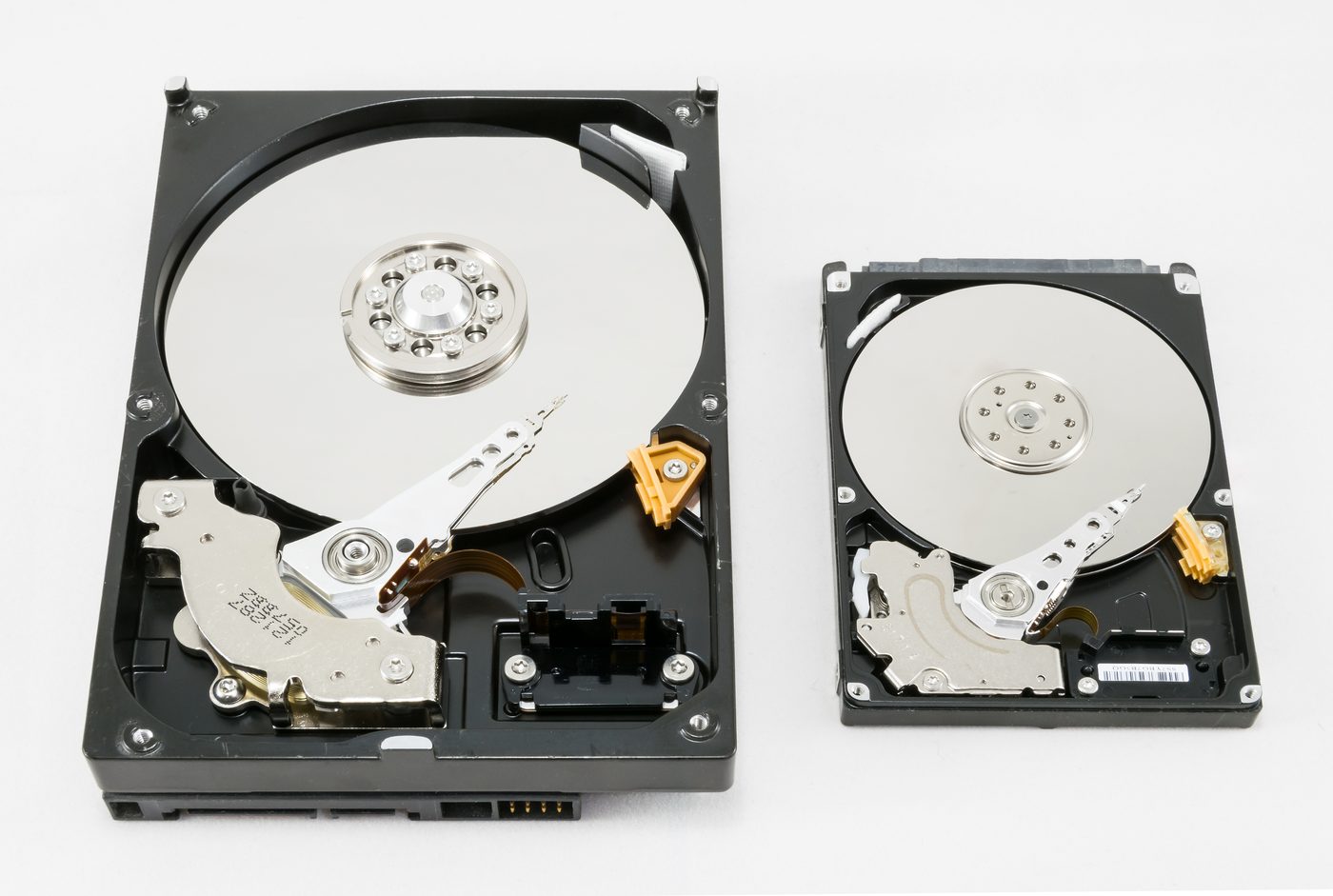
Two opened hard disk drives showing platters and heads (Source: Wikimedia Commons)
Solid State Drive (SSD): Uses flash memory with no moving parts, providing faster data access, lower power consumption, and greater durability. Hospitals rely on SSDs for critical applications requiring rapid data retrieval.
Interface Types: SATA connections are common for both HDDs and SSDs, while NVMe SSDs use PCIe for higher performance.
Reliability: SSDs are less prone to mechanical failure, important for mobile and field computers used in agricultural cooperatives.
Cost Considerations: SSDs are more expensive but offer significant performance advantages.
The video card renders images and video to the monitor, influencing display quality and graphics performance.
Integrated GPU: Built into the CPU or motherboard, suitable for basic office tasks in schools or county offices.
Dedicated GPU: A separate card with its own memory, essential for graphic-intensive applications like video editing in hotel marketing departments.
VRAM Size: Video memory size affects the ability to handle high-resolution textures and 3D rendering.
Cooling: Dedicated GPUs often require additional cooling due to higher power consumption.
Connectivity: Video cards provide various output ports (HDMI, DisplayPort) to connect different monitors.
RAM temporarily holds data and instructions that the CPU needs during operation, impacting system speed and responsiveness. It is volatile, meaning everything in it is lost when power goes off, which is why work must be saved to a storage drive.
Capacity: Larger RAM sizes allow more applications to run simultaneously. A university computer lab workstation running educational software smoothly needs a generous amount, for example 8GB.
Speed: Measured in MHz, faster RAM improves data transfer rates.
Type: DDR4 is newer and faster than DDR3. Each type fits a different slot and they are not interchangeable.
Form Factor: DIMM for desktops, SO-DIMM for laptops.
Dual Channel: Using matched pairs of RAM modules can improve performance.
The PSU converts electrical power from the outlet into usable power for computer components.
Wattage: Must provide sufficient power for all components; power-hungry setups, like those with dedicated GPUs, require higher wattage units.
Efficiency Rating: 80 Plus certification indicates energy efficiency, reducing electricity costs for organizations like county government offices.
Connectors: Includes cables for motherboard, CPU, GPU, and storage devices.
Protection Features: Safeguards against overvoltage, short circuits, and overheating.
Modular vs Non-Modular: Modular PSUs allow detaching unused cables, improving airflow and ease of cable management.
Effective cooling prevents overheating, which can cause hardware failure and data loss.
Air Cooling: Fans and heat sinks dissipate heat from CPUs and GPUs.
Liquid Cooling: Used in high-performance or gaming PCs, providing superior heat management.
Case Ventilation: Proper airflow within the case is vital to maintain component temperatures.
Dust Filters: Prevent accumulation of dust that impairs cooling efficiency.
Thermal Paste: Applied between the CPU and heat sink to improve heat transfer.
Classifying hardware means grouping devices by the job they do in the system. A technician who knows the class of a device knows where it fits in the data flow and where to look when it fails. A device is classified by the direction data flows. Data flowing into the computer means input. Data flowing out to the user means output. Data flowing both ways means the device belongs to both groups.
Classification by function:
Input Devices: These allow users to interact with the computer, converting user actions into data the computer can process. Examples include keyboards, mice, scanners, and webcams. In a county hospital, for instance, input devices enable medical staff to enter patient data efficiently.
Output Devices: These components present processed data to users. Monitors, printers, and speakers are common output devices. A bank teller uses monitors and printers daily to verify and provide transaction receipts.
Processing Devices: The Central Processing Unit (CPU) and Graphics Processing Unit (GPU) execute instructions and manage data flow. The CPU acts as the brain of the computer, while the GPU handles graphics-intensive tasks, such as designing promotional materials in a hotel's marketing department.
Storage Devices: These hold data and programs either temporarily or permanently. RAM holds data temporarily while the computer is on, while hard disk drives (HDDs), solid-state drives (SSDs), and optical drives keep data permanently. For a university's ICT department, reliable storage devices ensure that student records and research data are securely kept.
Communication Devices: Network interface cards (NICs) and modems enable connectivity to other computers and the internet, essential for cloud-based applications used by SACCOs and county offices.
Support Devices: The power supply unit, cooling fans and the CMOS battery do not process data themselves but keep the other parts powered, cool and correctly configured.
Devices that are both input and output:
| Device | As input | As output |
|---|---|---|
| Touchscreen | Registers taps, swipes and handwriting | Displays the image |
| Modem | Receives data from the network | Sends data out to the network |
| Network interface card (NIC) | Receives packets | Transmits packets |
| Multifunction printer | Scans and copies documents | Prints documents |
| External hard disk or flash drive | Sends stored files to the computer | Receives files for storage |
| Headset with microphone | Microphone captures sound | Earpieces play sound |
A plain monitor is an output device only. It receives the display signal and shows it. It cannot send data back to the computer, so it is not an input device. The confusion usually comes from two places. A touchscreen is a monitor with a touch sensor added, and that sensor is what makes it an input device, not the screen itself. A monitor with a built-in webcam, microphone or USB ports carries separate input devices in the same casing, and those connect to the computer by their own cable. The display panel is still output only.
In an examination, classify a monitor as output, and a touchscreen as both.
Create a free account to open more of this chapter.
Free: practical guides, quick cards, workplace scenarios and more.
Create a free accountThis chapter explored the selection and management of computer hardware devices by first defining what computer hardware devices are and identifying key components and ports. It examined essential external devices such as the computer case, monitor, keyboard, and mouse, as well as internal parts like the hard disk drive, motherboard, and video cards, including how these devices are classified. The process of disassembling computer hardware was covered, with emphasis on proper cleaning techniques to maintain device functionality. Assembling hardware devices was detailed, highlighting the types of devices, their functions, and the correct methods for connecting components such as the monitor and system unit. The chapter introduced booting, explaining the purpose of starting a computer and differentiating between cold and warm booting methods. Finally, it addressed the connection and configuration of peripheral devices, including various types like the mouse, keyboard, and projector, ensuring they operate effectively within a computer system.
At the start of this chapter we promised you would be able to:
Tick each one you can genuinely do.
So, are you there yet?
You're competent when you can confidently do 50% or more of what this chapter promised.
Sign in to record how you're doing.