
By the end of this chapter, you will be able to:
Mastering these skills will help you create accurate technical drawings and work efficiently and safely in your trade.
Compiled by: Samuel Wachira
Technical drawing is fundamental to civil engineering, serving as the universal language for communicating design ideas, construction details, and project specifications. Mastery of drawing equipment and materials ensures precision, efficiency, and clarity in producing drawings that meet industry standards. In Kenya, where infrastructure development is rapidly evolving, civil engineers must be proficient in both traditional and computer-aided drawing tools to deliver high-quality work for projects ranging from roads and bridges to water supply systems. This chapter focuses on identifying essential drawing equipment, selecting appropriate tools for specific tasks, understanding CADD software options, and applying proper usage techniques to maintain professionalism and accuracy in civil engineering drawings.
Drawing equipment forms the backbone of producing accurate and professional civil engineering drawings. The choice of equipment directly influences the quality and efficiency of the drafting process. Kenyan civil engineers often work on-site and in offices where both manual and computerized drawing methods are used. Understanding the types of drawing equipment, criteria for selecting them, various CADD software available, and proper usage ensures drawings comply with standards such as BS EN ISO 128 and Kenya Bureau of Standards (KEBS) guidelines.
Equipment and materials are not the same thing. Drawing equipment consists of the instruments and devices used to produce a drawing. They are durable, reusable and maintained rather than consumed. Drawing materials are the consumable items a drawing is made on and with, such as paper, tracing film, pencil leads, ink and erasers. They are used up and replaced. This section covers equipment only. Materials are covered in 1.2.
Drawing equipment is categorised into manual instruments and digital devices, each serving specific roles in the drafting process. Manual equipment remains vital for initial sketches, site measurements and quick modifications, while digital equipment enhances productivity and accuracy in producing detailed plans.
| Name | Specification | Use |
|---|---|---|
| Drawing Board | Smooth, flat surface, usually 60 x 90 cm | Provides a stable base for manual drawing |
| T-square | Rigid straightedge, 60 cm long | Drawing horizontal lines and guiding set squares |
| Set Squares | Triangular, 30/60 degrees and 45 degrees | Drawing angled lines and perpendiculars |
| Adjustable Set Square | Protractor head, lockable | Drawing any angle without changing instruments |
| Compass | Adjustable radius, metal body | Drawing arcs and circles |
| Divider | Two steel points, adjustable | Transferring measurements and dividing lines |
| Protractor | Semi-circular, 180 degree scale | Measuring and drawing angles |
| Scale Rule | Triangular or flat with multiple scales | Measuring and drawing to scale |
| French Curves | Set of shaped templates | Drawing irregular curves |
| Flexible Curve | Bendable strip holding its shape | Drawing long irregular curves such as contours |
| Templates and Stencils | Circle, square, lettering and symbol templates | Repeating standard shapes and symbols accurately |
| Drafting Machine | Board-mounted parallel motion unit | Replaces T-square and set squares in an office |
| Clutch or Mechanical Pencil Holder | 0.5 mm and 0.7 mm | Holds the lead for precision line work |
| Drawing Pen Set | Technical pens, 0.25 to 0.7 mm nibs | Inking final drawings to standard line widths |
| Lead Pointer | Rotary sharpener for leads | Maintaining a consistent point for uniform lines |
| Name | Specification | Use |
|---|---|---|
| Computer Workstation | Multi-core CPU, 16 GB RAM, dedicated graphics | Running CADD software |
| Monitor | 24 inch or larger, high resolution | Displaying drawings at a workable size |
| Plotter | Large format, A0 capable | Printing final digital drawings |
| Printer | A3 or A4, laser or inkjet | Printing working copies and details |
| Graphics Tablet | Pressure-sensitive input device | Digital freehand drawing and editing |
| Scanner | A3 or large format | Digitising existing paper drawings |
| Digitiser | Tablet with puck or stylus | Tracing paper drawings into CADD |
| Storage and Backup | External drive or cloud storage | Protecting drawing files against loss |
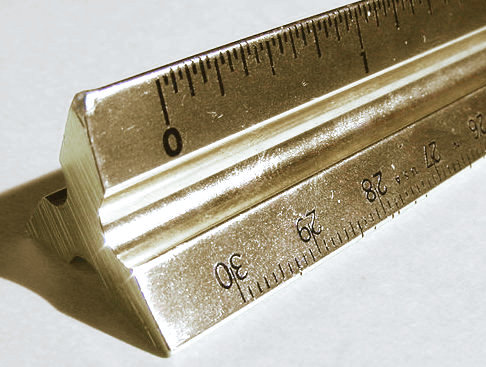
Triangular scale ruler used in civil engineering (Source: Wikimedia Commons)
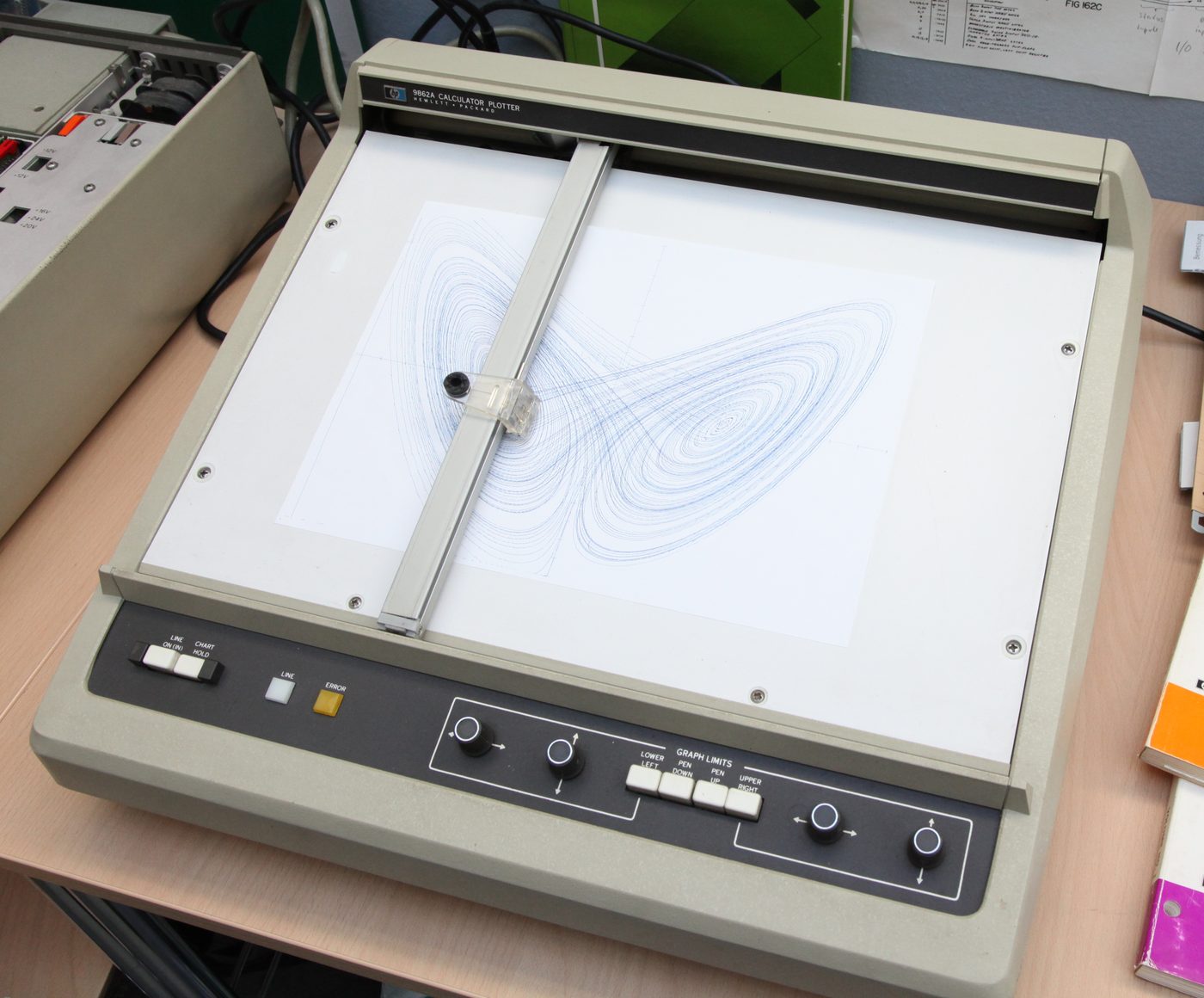
Vintage XY plotter with plotted graph (Source: Wikipedia (Plotter))
Selecting the right drawing equipment depends on the nature of the task, required precision, and working environment. Civil engineers in Kenya face varied scenarios from field sketches to detailed office designs, necessitating careful consideration of equipment properties.
Computer-Aided Design and Drafting (CADD) software revolutionizes civil engineering drawing by enabling precise, editable, and shareable digital plans. Kenyan civil engineers benefit from various software options tailored to infrastructure design, surveying, and project documentation.
| Software | Key Features | Typical Use in Civil Engineering |
|---|---|---|
| AutoCAD Civil 3D | Terrain modeling, corridor design | Road design, site grading, utilities layout |
| MicroStation | Advanced 3D modeling, interoperability | Large infrastructure projects, railways |
| Revit | Building Information Modeling (BIM) | Structural and architectural coordination |
| QGIS | Open-source GIS with mapping tools | Environmental and site analysis |
| SketchUp | Easy 3D modeling | Conceptual designs and visualizations |
| LibreCAD | Free, open-source 2D drafting | Basic 2D drawings where licence cost is a constraint |
| ArchiCAD | BIM with architectural emphasis | Building design and documentation |
Correct handling and operation of drawing equipment prevent errors, extend equipment life, and ensure compliance with drawing standards such as BS EN ISO 128 and KEBS guidelines. Kenyan civil engineers must adopt best practices for both manual and digital drawing environments.
Create a free account to open more of this chapter.
Free: practical guides, quick cards, workplace scenarios and more.
Create a free accountThis chapter provides a comprehensive overview of the essential drawing equipment and materials used in technical drawing, detailing various types of tools and the criteria for selecting them based on specific tasks. It covers different drawing materials, their properties, and how to choose appropriate materials to suit particular drawing requirements. The correct use of drawing equipment is emphasized, including standard conventions, maintenance procedures, and troubleshooting common problems to ensure longevity and accuracy. An introduction to AutoCAD explains the basics of CAD technology, the interface, essential tools, and how to set up an effective workspace. Guidance on creating and saving drawings focuses on starting new projects, understanding units and scale, and organizing files systematically. Proper handling and storage of drawing materials in the workplace are also discussed to maintain quality and usability. Finally, the chapter addresses waste disposal procedures, highlighting environmental regulations and recycling options to promote sustainable practices in drawing activities.
Which of the following drawing tools is best suited for creating precise circle arcs in manual drafting? (2 marks)
a) T-square
b) Compass
c) Protractor
d) Divider
Identify two key factors to consider when selecting drawing materials for site layout plans. (3 marks)
Type: Individual
| Tools & Equipment | Materials |
|---|---|
| Drawing board | Drawing papers A3 size |
| T-square | Protective gloves |
| Set squares (45° and 30°/60°) | Dust coat |
| Compass | Safety boots |
| Divider | |
| Protractor | |
| Mechanical pencils (0.5mm and 0.7mm) | |
| Eraser | |
| Sharpener | |
| French curves |
| S/N | Item | Quantity |
|---|---|---|
| 1 | Drawing board | 1 Pc per Candidate |
| 2 | T-square | 1 Pc per Candidate |
| 3 | Set squares (45° and 30°/60°) | 1 Set per Candidate |
| 4 | Compass | 1 Pc per Candidate |
| 5 | Divider | 1 Pc per Candidate |
| 6 | Protractor | 1 Pc per Candidate |
| 7 | Mechanical pencils (0.5mm and 0.7mm) | 2 Pcs per Candidate |
| 8 | Eraser | 1 Pc per Candidate |
| 9 | Sharpener | 1 Pc per Candidate |
| 10 | French curves | 1 Set per 5 Candidates |
| 11 | Drawing papers A3 size | 3 Pcs per Candidate |
| 12 | Protective gloves | 1 Pair per Candidate |
| 13 | Dust coat | 1 Pc per Candidate |
| 14 | Safety boots | 1 Pair per Candidate |
| Items to be Evaluated | Marks Available | Marks Obtained | Comments |
|---|---|---|---|
| TASK 1: Identification and selection of drawing equipment | |||
| Wore PPEs (dust coat, protective gloves, safety boots) (Award 1 mark each or zero x 3 = 3 marks) | 3 | ||
| Inspected drawing board for surface cleanliness and flatness (Award 2 marks or zero) | 2 | ||
| Checked and selected appropriate T-square for A3 drawing (Award 3 marks or zero) | 3 | ||
| Identified and selected correct set squares (45° and 30°/60°) for drawing angles (Award 3 marks or zero) | 3 | ||
| Selected compass and divider suitable for drawing circles and measurements (Award 3 marks or zero) | 3 | ||
| Selected protractor for measuring and marking angles (Award 2 marks or zero) | 2 | ||
| Selected mechanical pencils of correct lead size (0.5mm and 0.7mm) for fine and shaded lines (Award 2 marks or zero) | 2 | ||
| Selected eraser and sharpener suitable for neat drawing corrections (Award 2 marks or zero) | 2 | ||
| Sub-Total | 20 | ||
| PRODUCT CHECKLIST | |||
| Correctly identified and listed drawing tools and their appropriate uses (Award 10 marks for accurate identification and justification) | 10 | ||
| Selected tools appropriate for given drawing tasks (angles, circles, straight lines) (Award 10 marks for correct selection) | 10 | ||
| Demonstrated safe handling and care of tools (Award 5 marks or zero) | 5 | ||
| Sub-Total | 25 | ||
| GRAND TOTAL | 45 | ||
Type: Individual
| Tools & Equipment | Materials |
|---|---|
| Computer with Windows 10 or higher OS | Blank writable CD or USB for backup |
| AutoCAD 2024 installation media (USB or CD) | A3 size printing papers |
| Standard computer mouse and keyboard | PPE: Electrical safety gloves |
| Printer (A3 capable) |
| S/N | Item | Quantity |
|---|---|---|
| 1 | Computer with Windows 10 or higher OS | 1 Pc per Candidate |
| 2 | AutoCAD 2024 installation media (USB or CD) | 1 Pc per Candidate |
| 3 | Internet access for software activation and updates | Shared per 5 Candidates |
| 4 | Blank writable CD or USB for backup | 1 Pc per Candidate |
| 5 | A3 size printing papers | 3 Pcs per Candidate |
| 6 | Printer (A3 capable) | 1 Pc shared |
| 7 | Standard computer mouse and keyboard | 1 Set per Candidate |
| 8 | PPE: Electrical safety gloves | 1 Pair per Candidate |
| Items to be Evaluated | Marks Available | Marks Obtained | Comments |
|---|---|---|---|
| TASK 1: Installation and Setup | |||
| Wore PPE (electrical safety gloves) before handling hardware and software installation (Award 3 marks for correct PPE use or zero) | 3 | ||
| Prepared computer by checking system requirements and freeing sufficient disk space (Award 4 marks for proper preparation or zero) | 4 | ||
| Installed AutoCAD 2024 software correctly from provided media (Award 8 marks for complete and error-free installation) | 8 | ||
| Activated software using valid license and connected to internet for updates (Award 5 marks for successful activation and update) | 5 | ||
| Configured workspace to metric units and set default layers according to company standards (Award 6 marks for correct unit setup and layer configuration) | 6 | ||
| Set up layout for A3 size (4200mm x 2970mm) sheet correctly (Award 4 marks for correct layout setup or zero) | 4 | ||
| Saved the configured workspace and created a backup on writable CD or USB (Award 4 marks for proper saving and backup) | 4 | ||
| Printed a test drawing on A3 paper to verify setup (Award 5 marks for successful print on correct paper size) | 5 | ||
| Sub-Total | 39 | ||
| PRODUCT CHECKLIST | |||
| Installed AutoCAD 2024 software functions correctly without errors (Award 5 marks for fully functional software) | 5 | ||
| Workspace configured to metric units with correct default layers (Award 4 marks for accurate workspace configuration) | 4 | ||
| Layout set to A3 size (4200mm x 2970mm) with proper scaling (Award 5 marks if layout matches specified dimensions exactly) | 5 | ||
| Backup copy of configured workspace saved on writable media (Award 3 marks for proper backup creation) | 3 | ||
| Test print on A3 paper is clear, correctly scaled, and aligned (Award 4 marks for print clarity and accuracy) | 4 | ||
| Sub-Total | 21 | ||
| GRAND TOTAL | 60 | ||
At the start of this chapter we promised you would be able to:
Tick each one you can genuinely do.
So, are you there yet?
You're competent when you can confidently do 50% or more of what this chapter promised.
Sign in to record how you're doing.